UnwindTV

A fast, modern media player for LG webOS TVs. Watch your own playlist (server login or M3U) with a TV guide, movies and series, Continue watching and search – with a profile for everyone in the family, kid profiles and six languages. Set up in a minute from your phone.

First-use guide Manage my TV

7 days free on every TV · then a one-time activation

Movies home with Continue watching, Recently added and Top rated rows

What you get

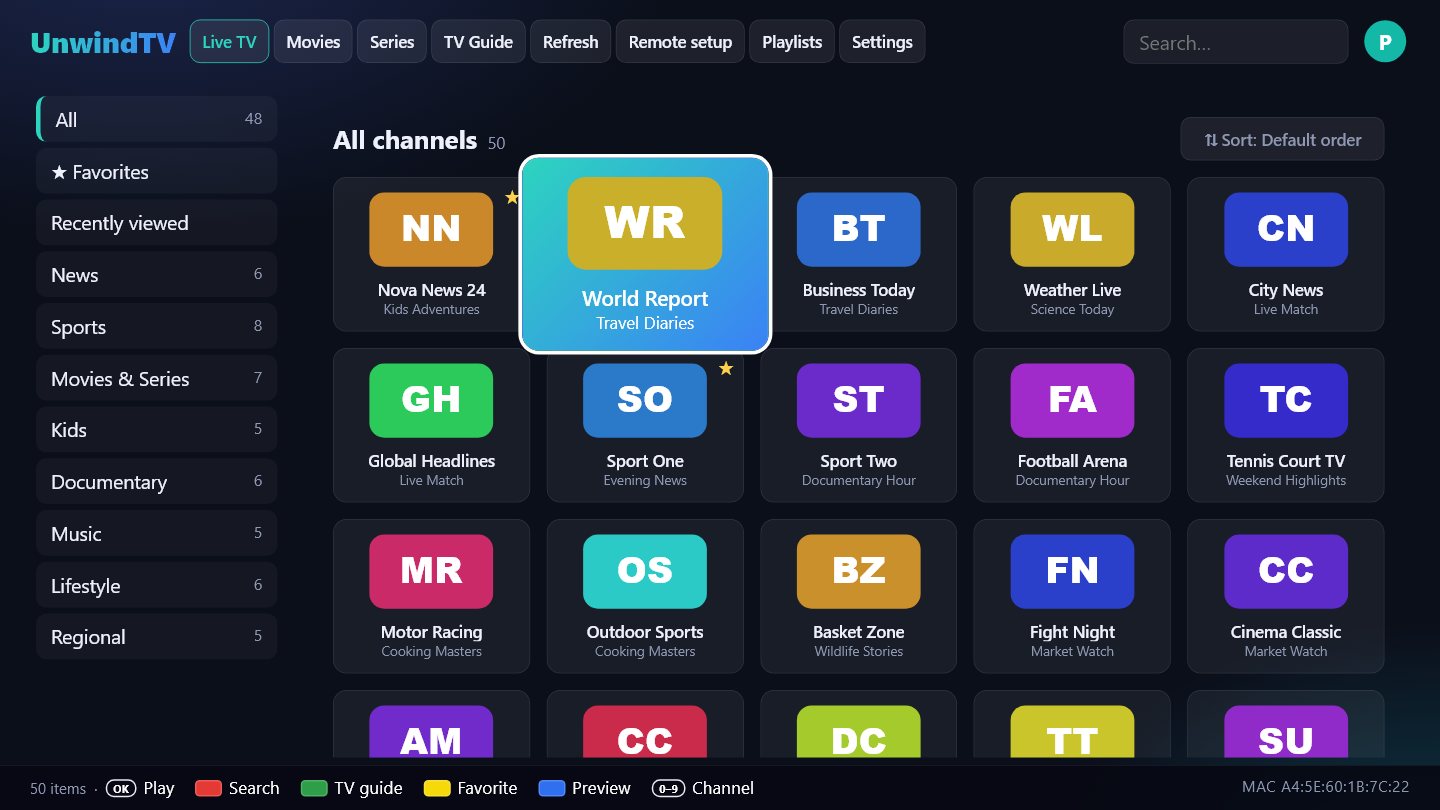
Live TV channel grid

Live TV

Channel grid with what is on now, categories, favourites, channel numbers (0–9) and a live preview.
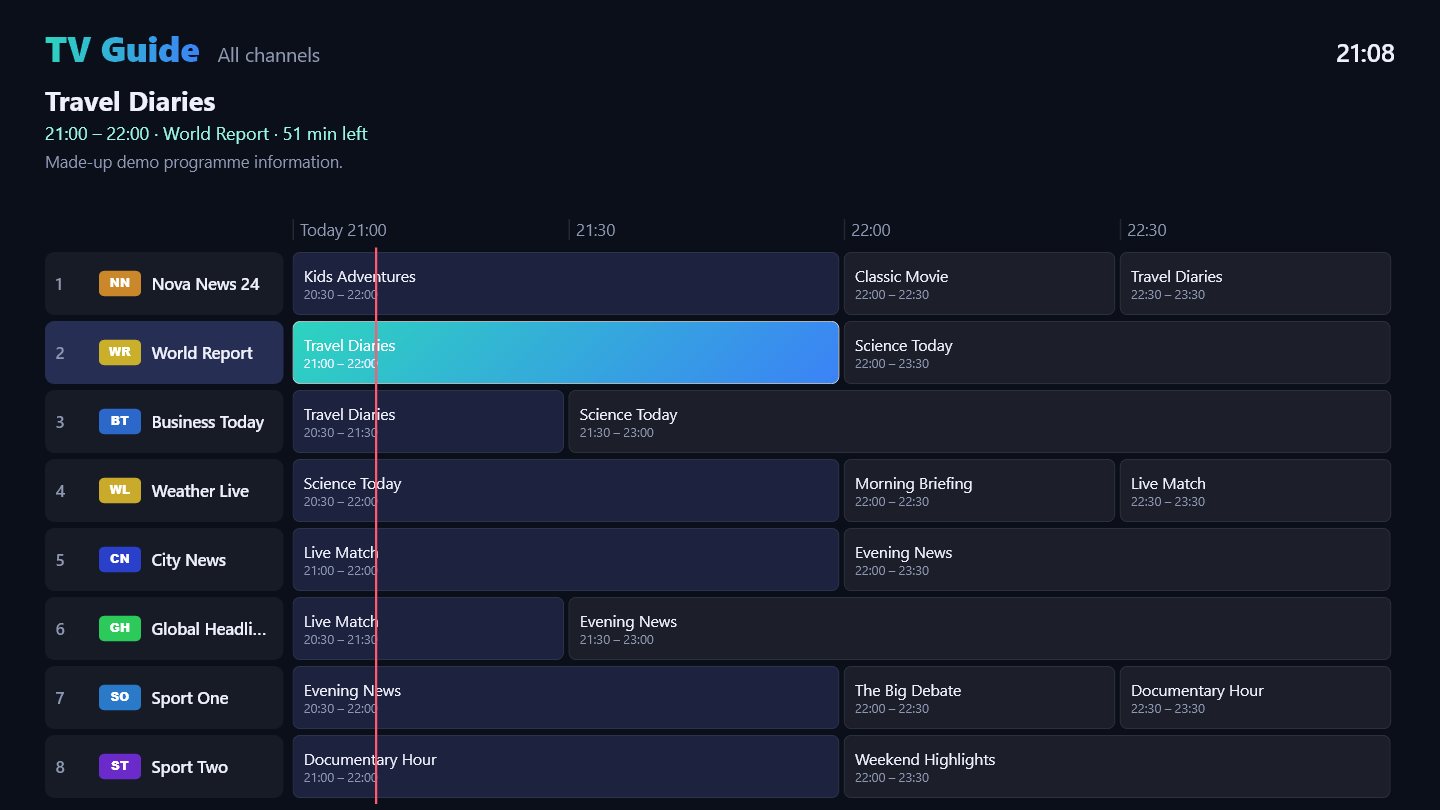
TV guide

TV guide

A full programme guide (Green button) from your provider's EPG or your own XMLTV address.
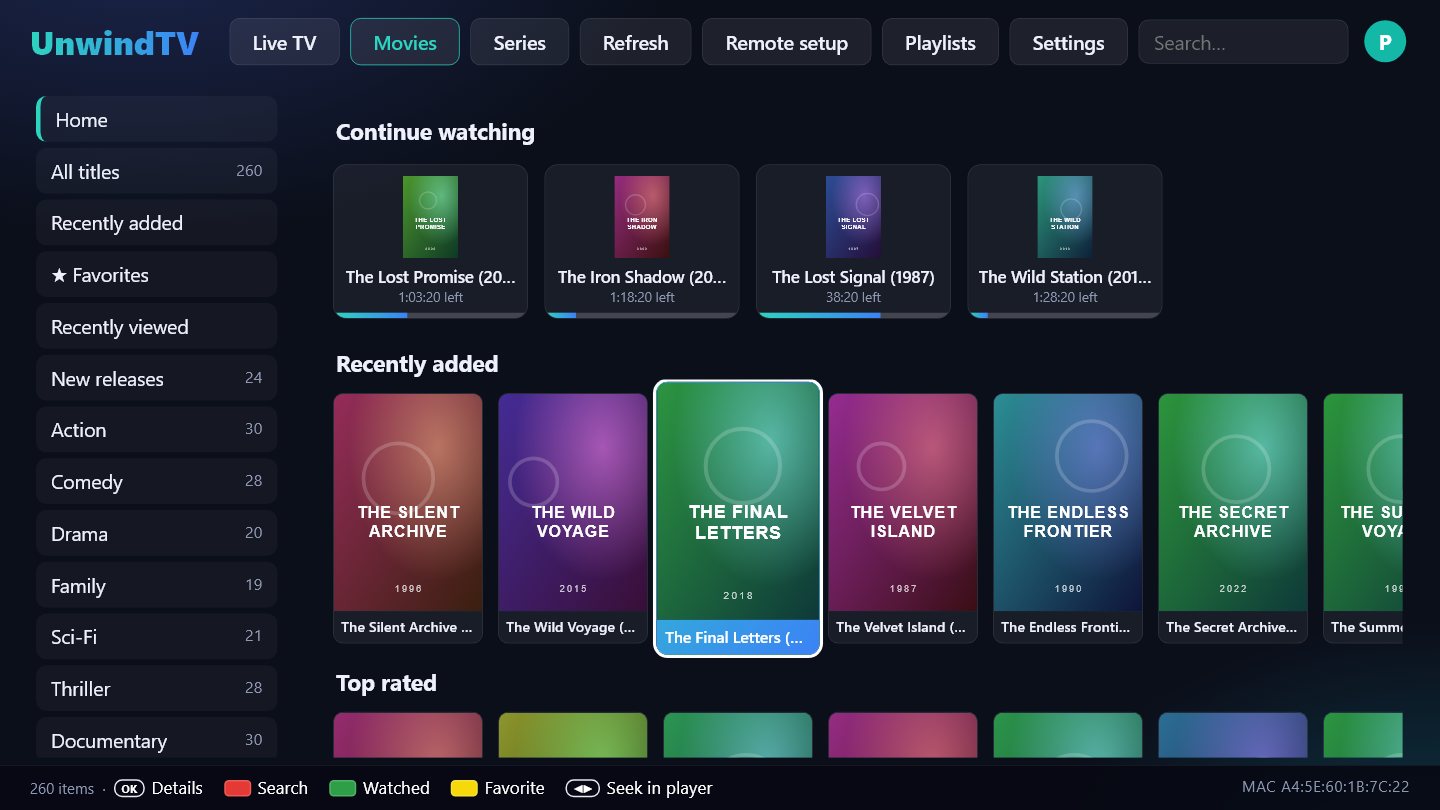
Movies home

Movies

A Netflix-style home: Continue watching, Recently added, Top rated and a row per category – fast even with 150 000+ titles.
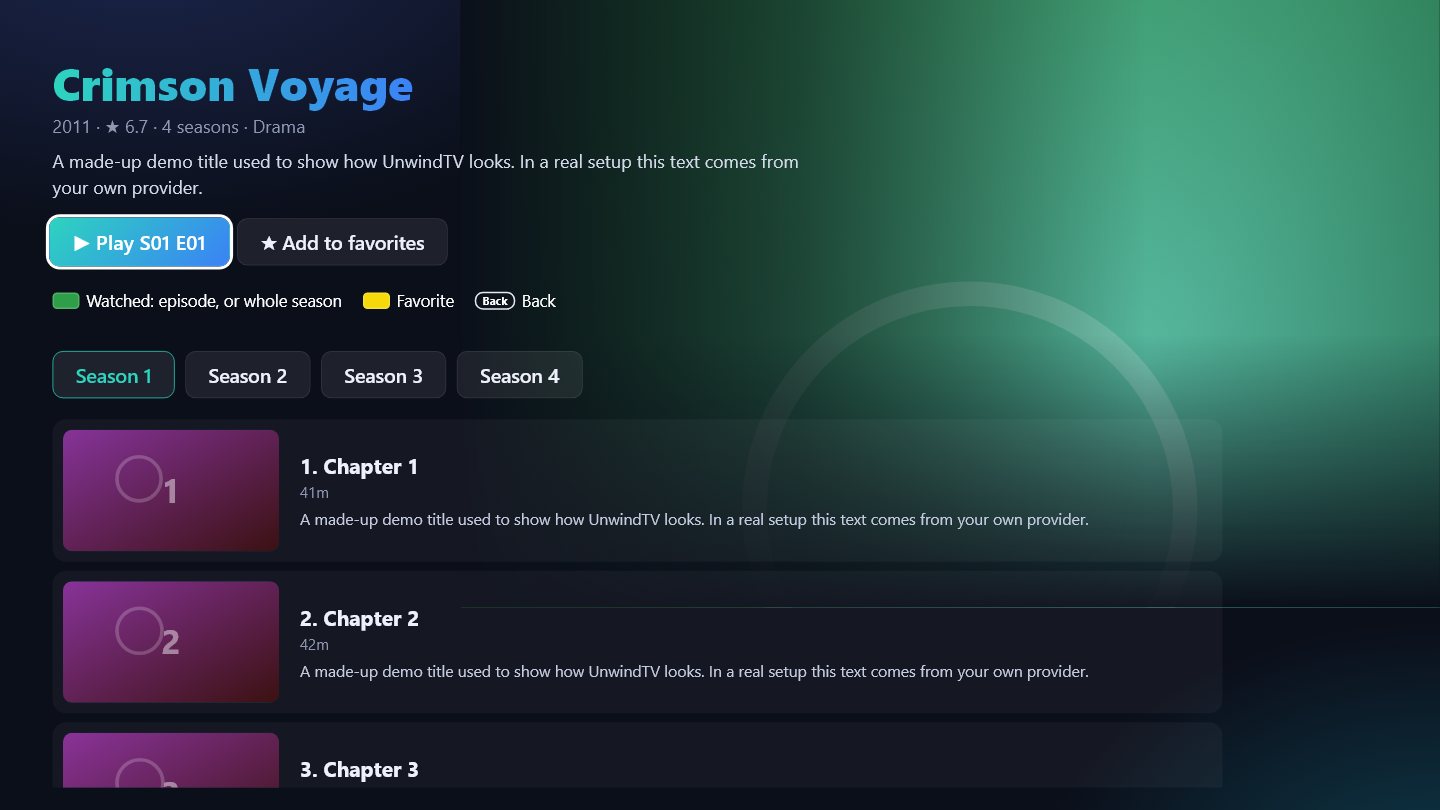
Series with seasons and episodes

Series

Seasons and episodes with pictures and watched marks; Play continues where you stopped.
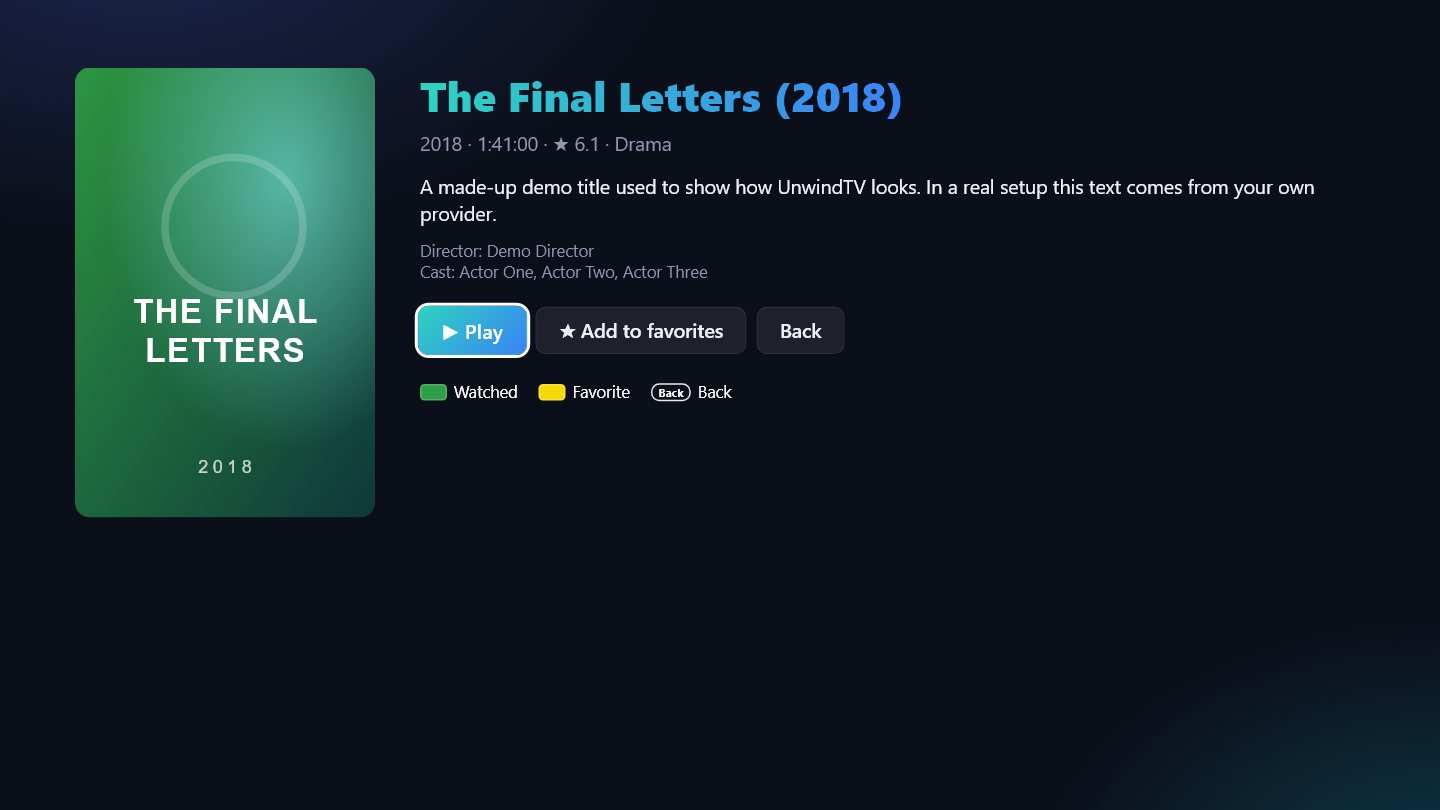
Movie details

Details

Plot, year, length, rating and cast. Choose audio language and subtitles in the player.
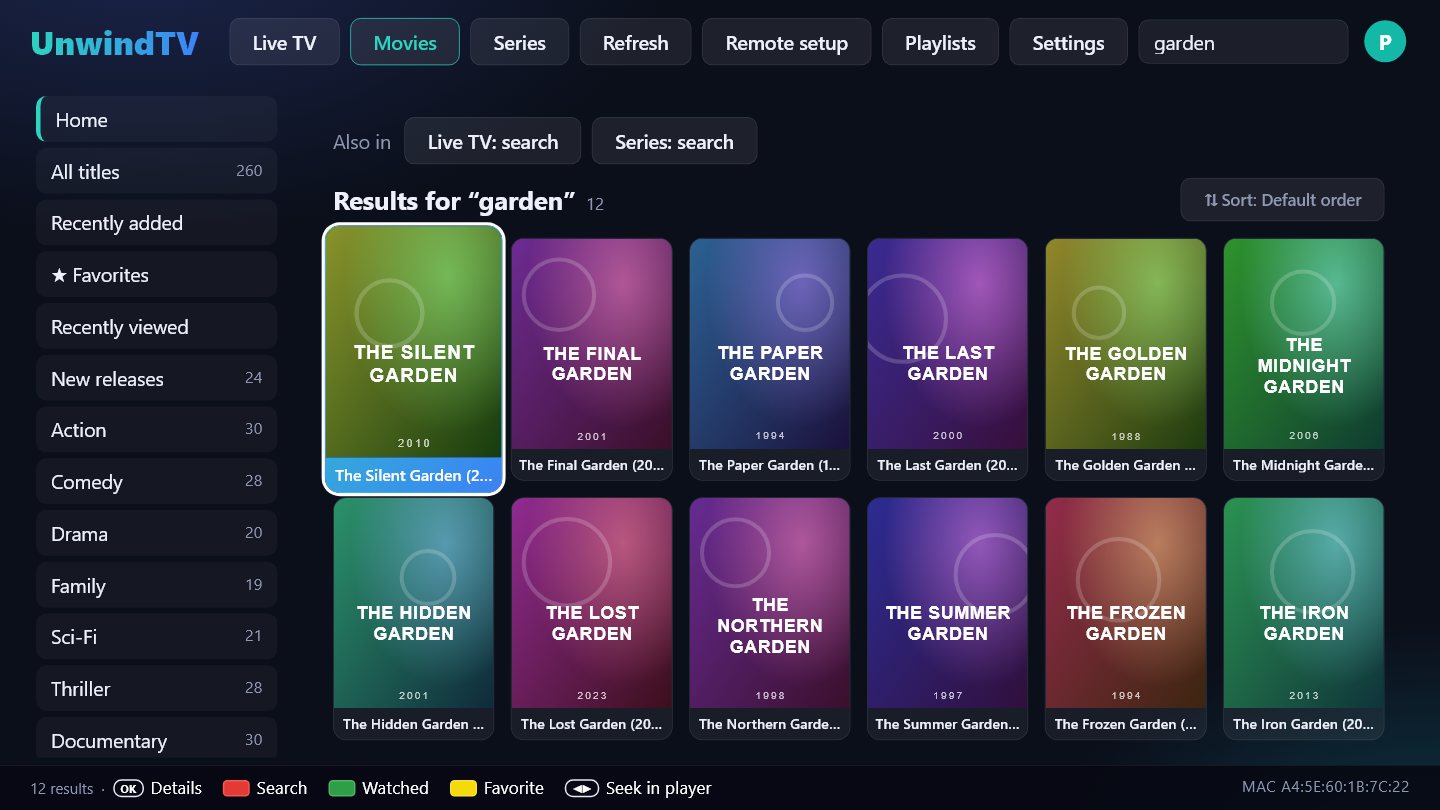
Search results

Search

Press Red and type – results across the whole section, with a jump to Live TV or Series results.
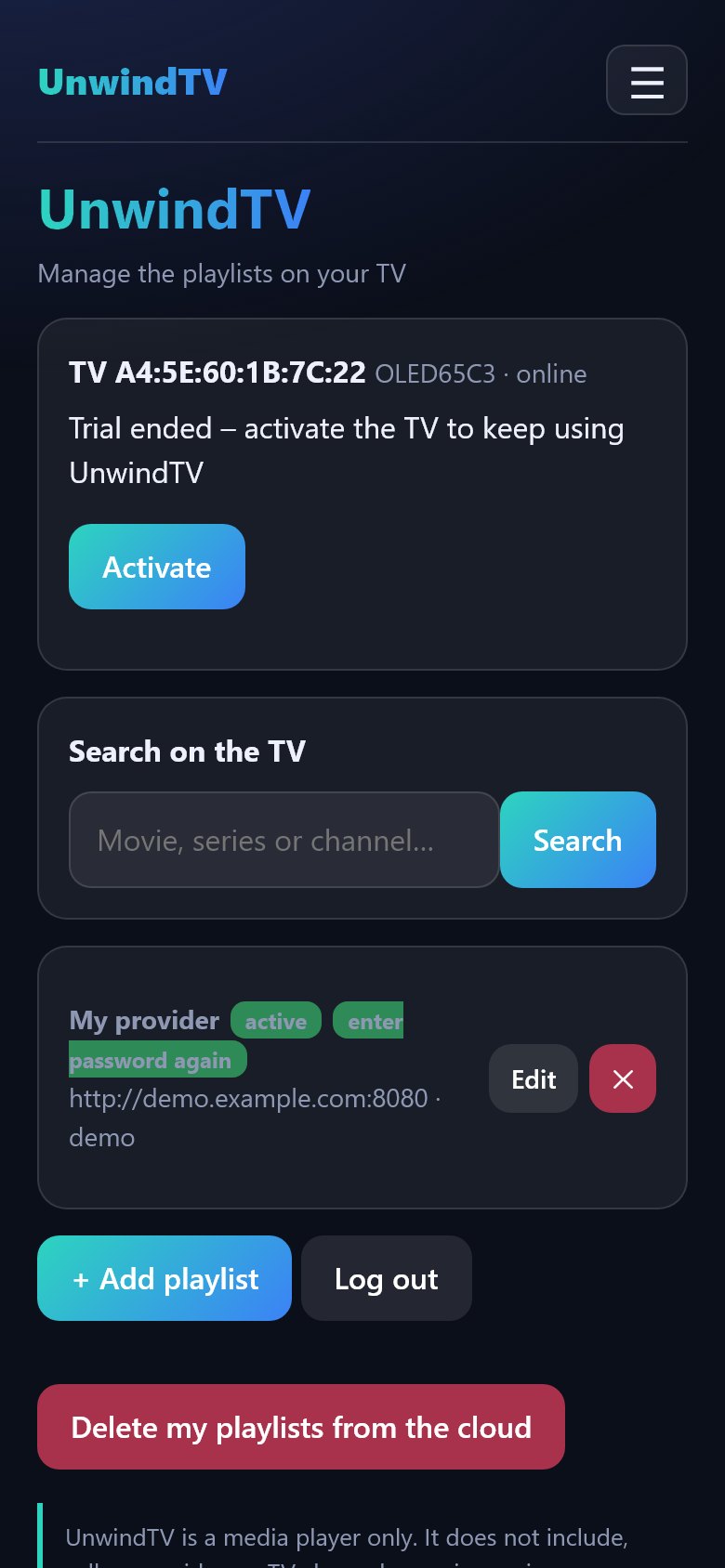
Phone management page

Manage from your phone

Scan the QR code on the TV: add playlists, hide categories and search – no typing with the remote, works from anywhere.
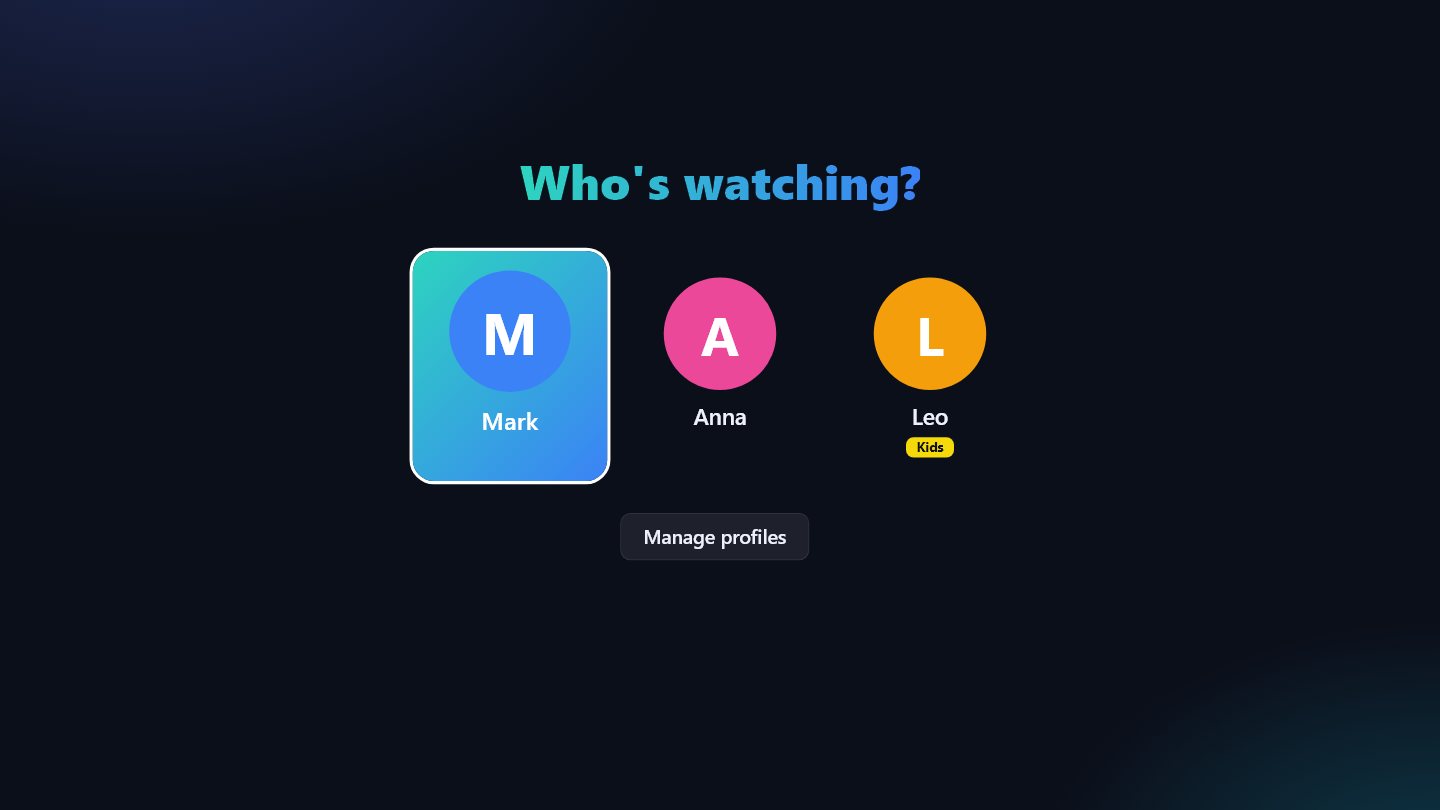
Who's watching? – profile choice

Profiles

Up to five profiles, each with its own favourites, Continue watching, categories and language. Kid profiles hide adult and locked categories.
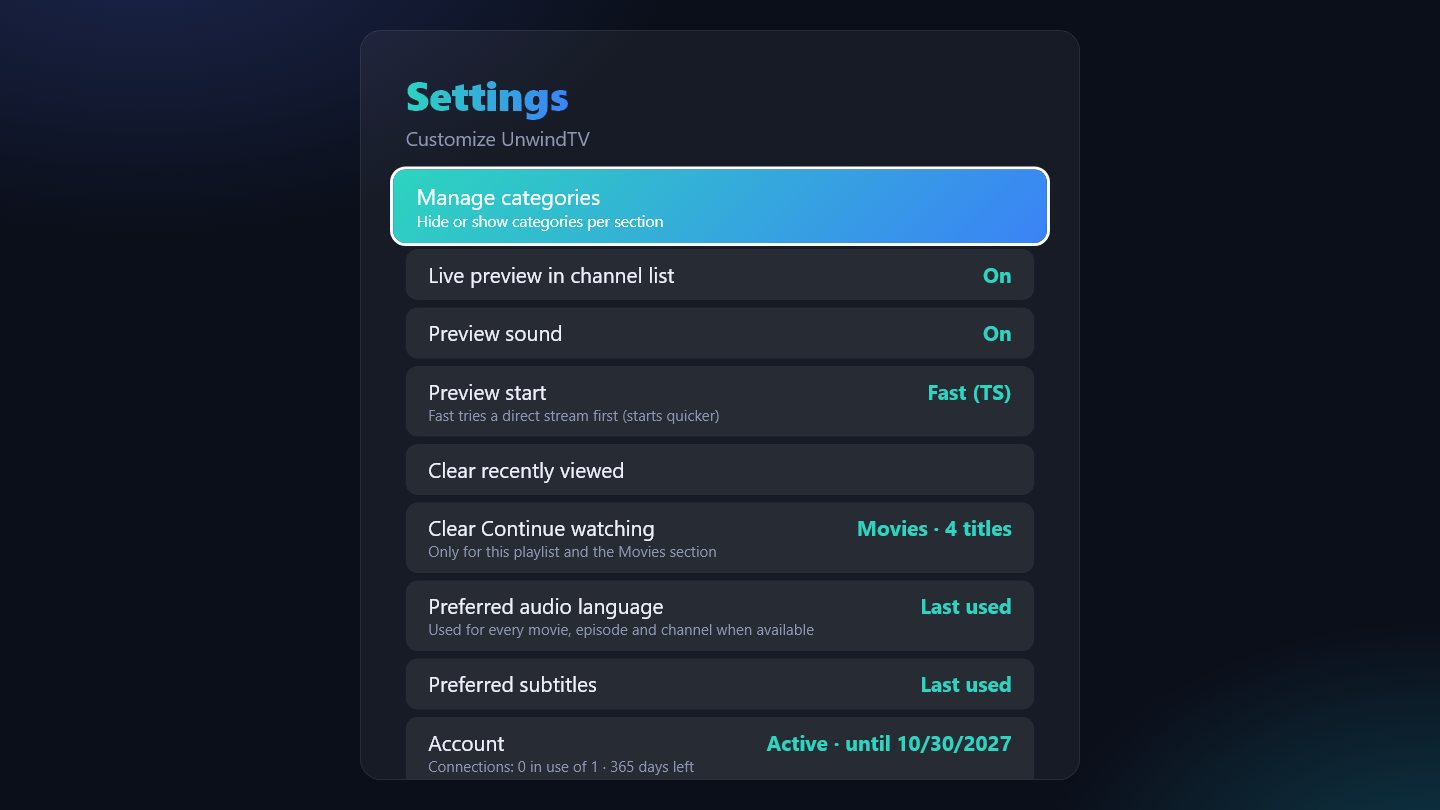
Settings

Your way

Hide or lock categories (parental PIN), preferred audio and subtitles, subtitle size, several playlists.

How it works

  1. Install UnwindTV from the LG Content Store and open it. The first 7 days are free.
  2. Add your playlist – on your phone (scan the QR code under Remote setup) or with the remote. You need the details from your own provider: a server address (Xtream API), username and password, or an M3U address.
  3. Watch. Live TV, movies and series appear in seconds. Changes you make on the phone show on the TV within seconds, and the other way round.
  4. Keep it: after the trial the TV shows a QR code – activate it once and it stays unlocked.

Read the step-by-step guide →

Good to know

UnwindTV is a media player only. It does not include, sell or provide any TV channels, movies, series or playlists. Users add their own content from their own provider, and are solely responsible for having the right to watch it. UnwindTV is not affiliated with any content provider.