2. First start
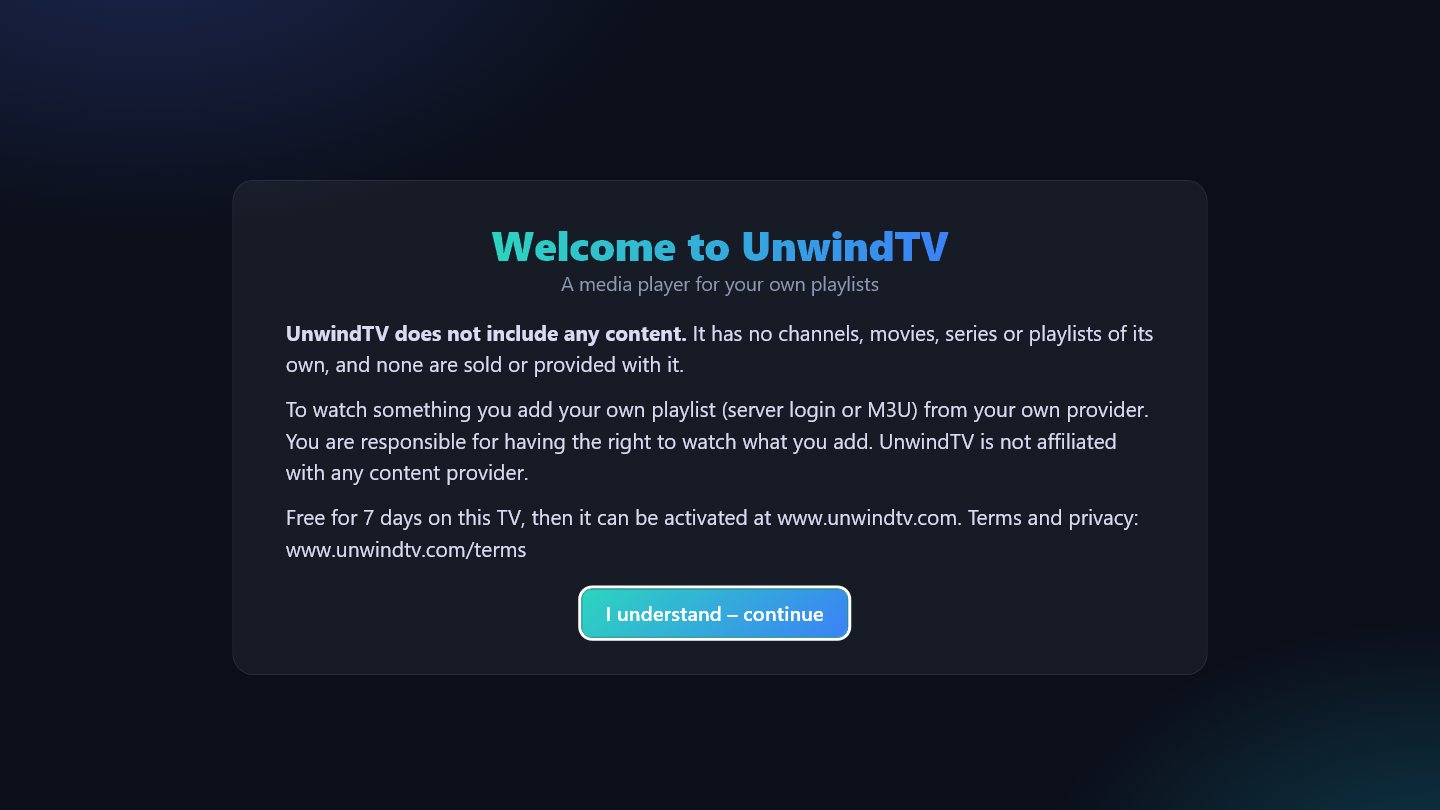
The first screen explains that UnwindTV is a player only: it has no channels or films of its own – you use your own playlist from your own provider. Press OK on I understand – continue.
From installing to watching in a few minutes.
On the TV open the LG Content Store, search for UnwindTV and install it. Open it from the app list.
The first screen explains that UnwindTV is a player only: it has no channels or films of its own – you use your own playlist from your own provider. Press OK on I understand – continue.
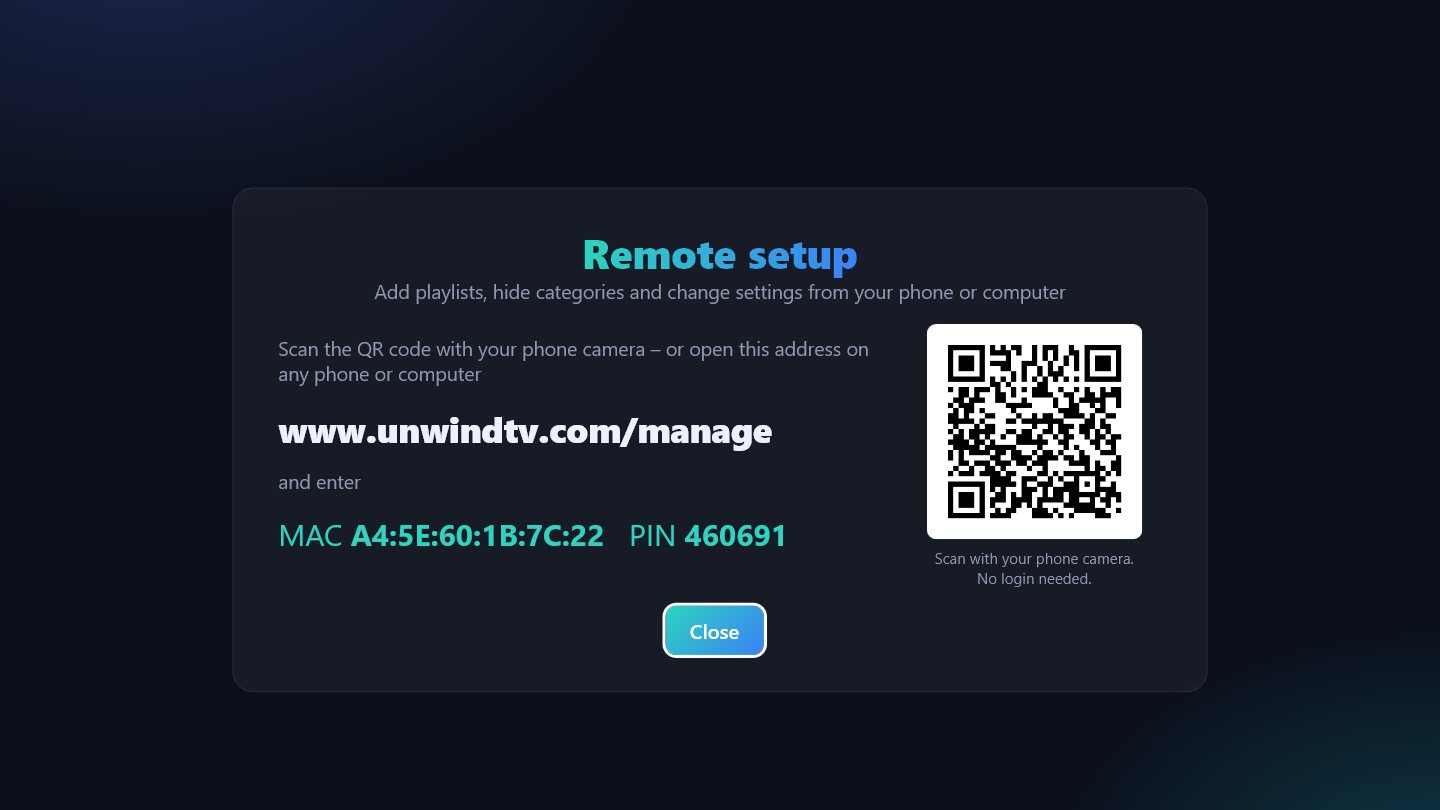
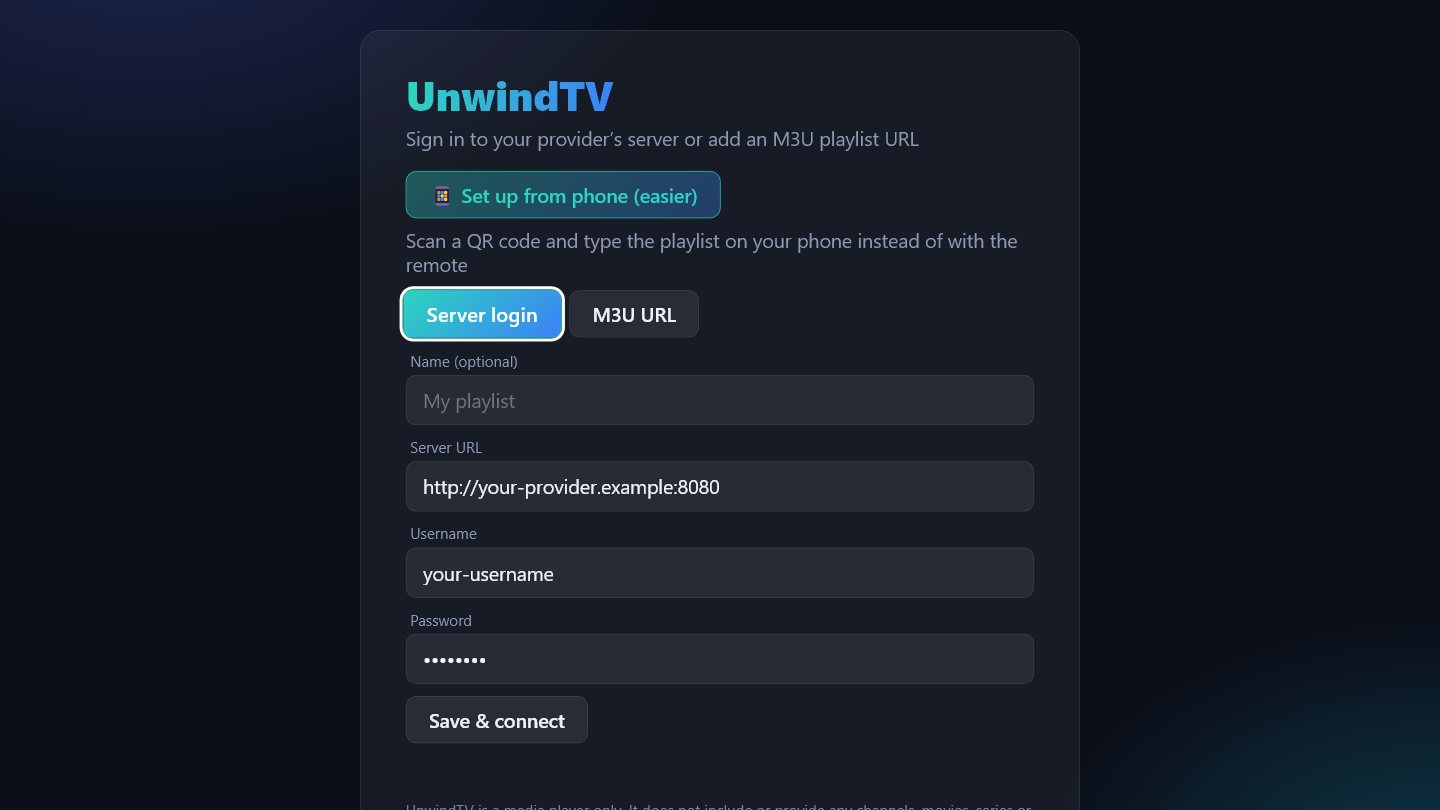
Easiest – with your phone: choose Set up from phone. The TV shows a QR code. Scan it with the phone camera and the Manage page opens, already connected to this TV (no account, no password). Tap Add playlist, enter your provider's details and save – the TV loads it within seconds.
No camera? Open www.unwindtv.com/manage on any phone or computer and type the MAC and PIN shown on the TV.
With the remote: choose Server login (server address, username, password) or M3U URL, fill in the fields and press Save & connect.
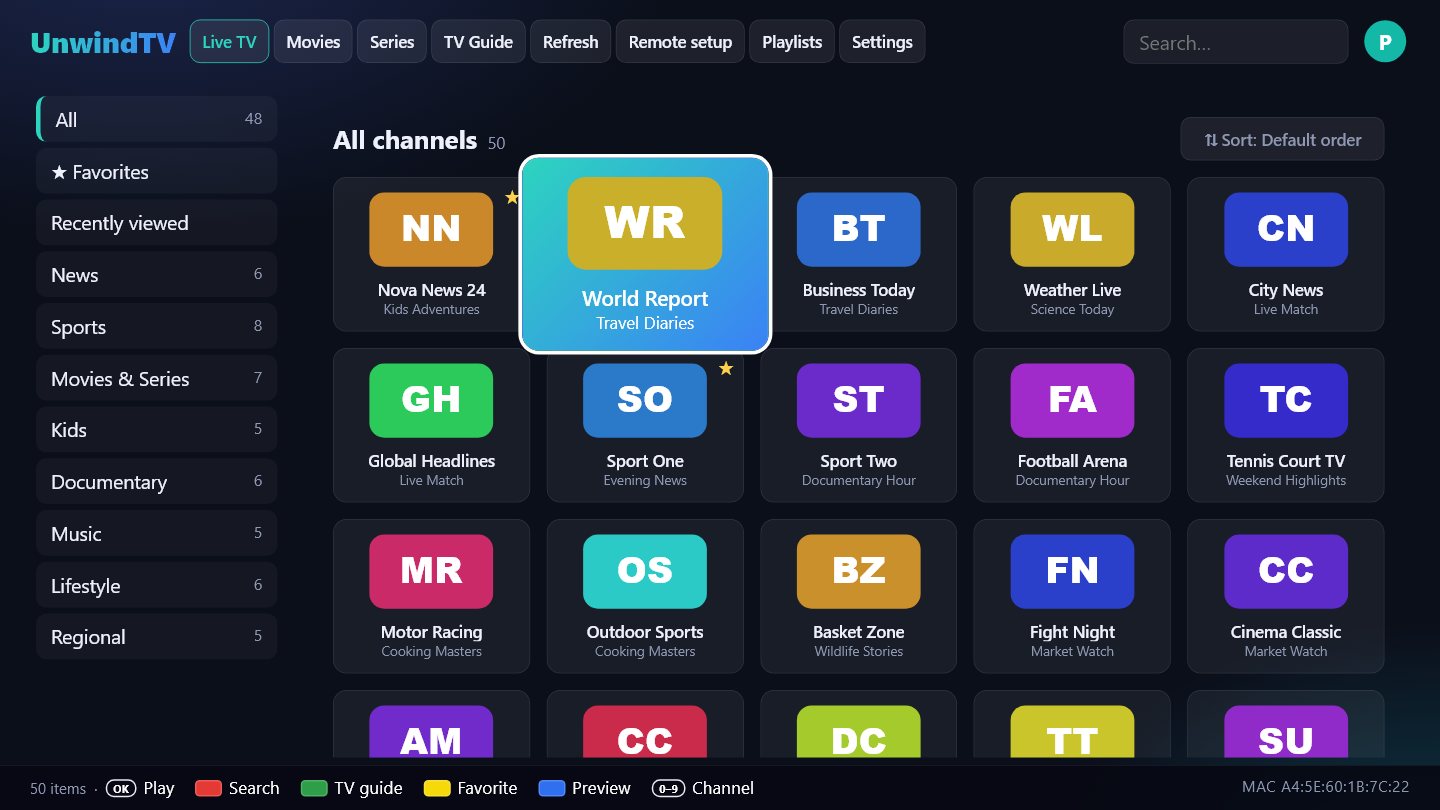
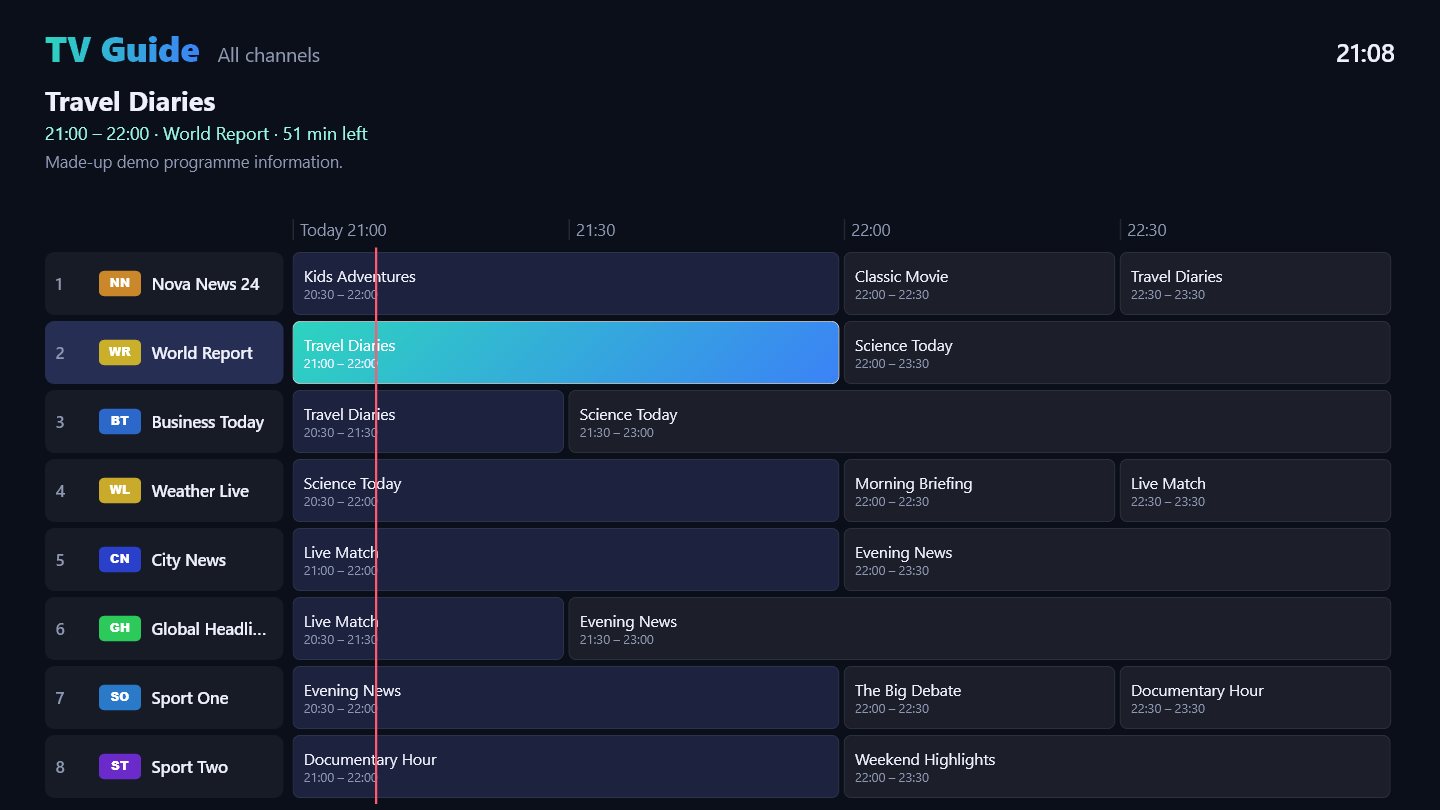
Categories are on the left, channels on the right with what is on now. OK plays, 0–9 jumps to a channel number, Yellow adds a favourite, Blue switches the small live preview on or off. Green opens the TV guide.
In the player: ▲▼ change channel, OK opens the channel list, Red goes back to the last channel.
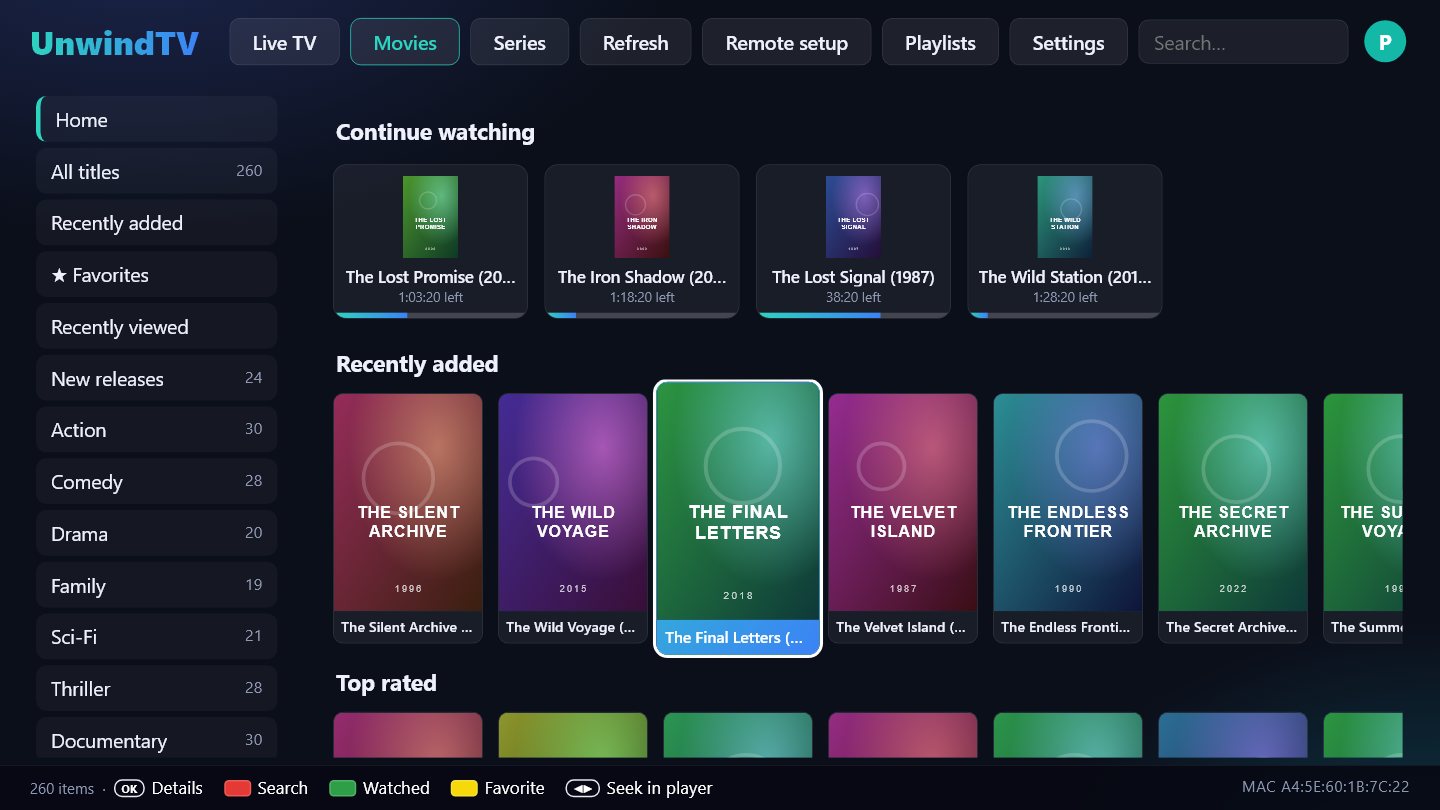
Home shows Continue watching, Recently added, Top rated and a row for each category. OK on a title opens its details; Play continues where you stopped. Green marks a title watched, Yellow adds it to favourites, and Blue on a Continue watching card removes it from the row.
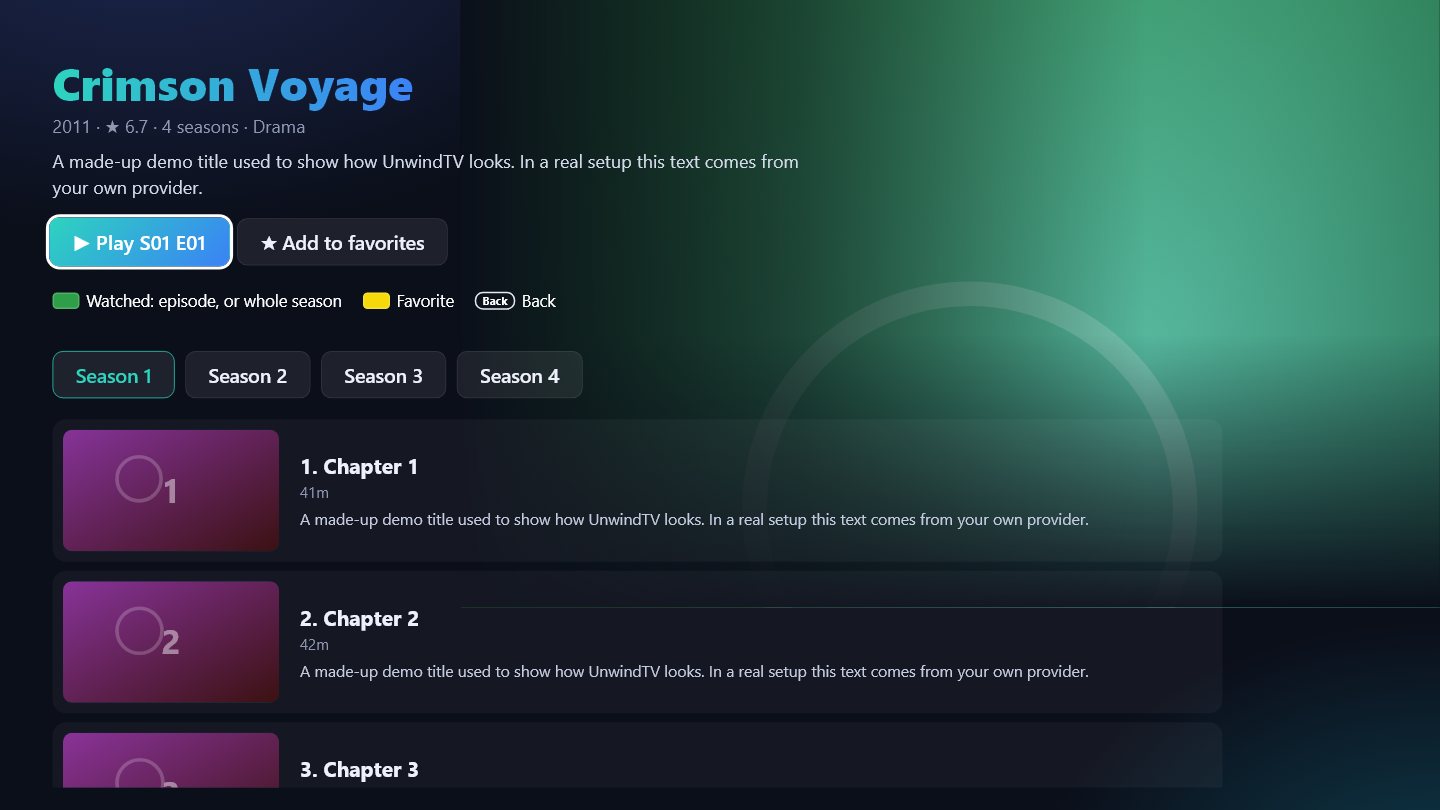
For series, pick a season and an episode. Green on an episode marks it watched / not watched; Green elsewhere on the page marks the whole season.
The first time, a big library takes a minute or two to load completely – you can browse while it loads, and after that it opens from the TV's memory in seconds.
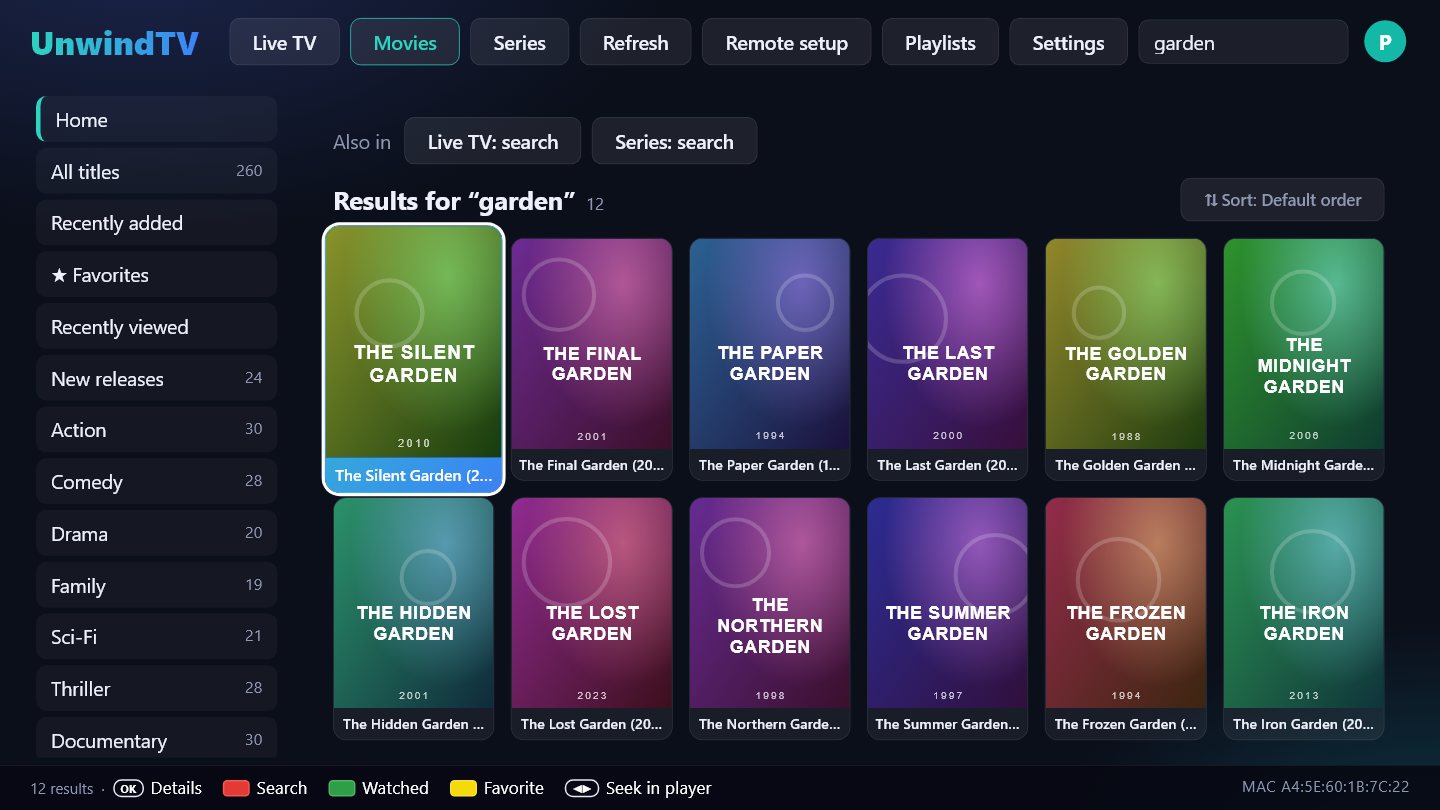
Press Red anywhere (or go up to the search box) and type. Results come from the whole section; the buttons above them jump to the same search in Live TV or Series. Back, or choosing a category, closes the search.
On the Manage page you can add, edit and switch playlists, choose which categories are visible (Live, Movies and Series separately, per profile) and send a search to the TV. What you hide on the TV shows on the phone and the other way round.
To connect again later, open Remote setup on the TV and scan the new QR code (each code works once, for 15 minutes).
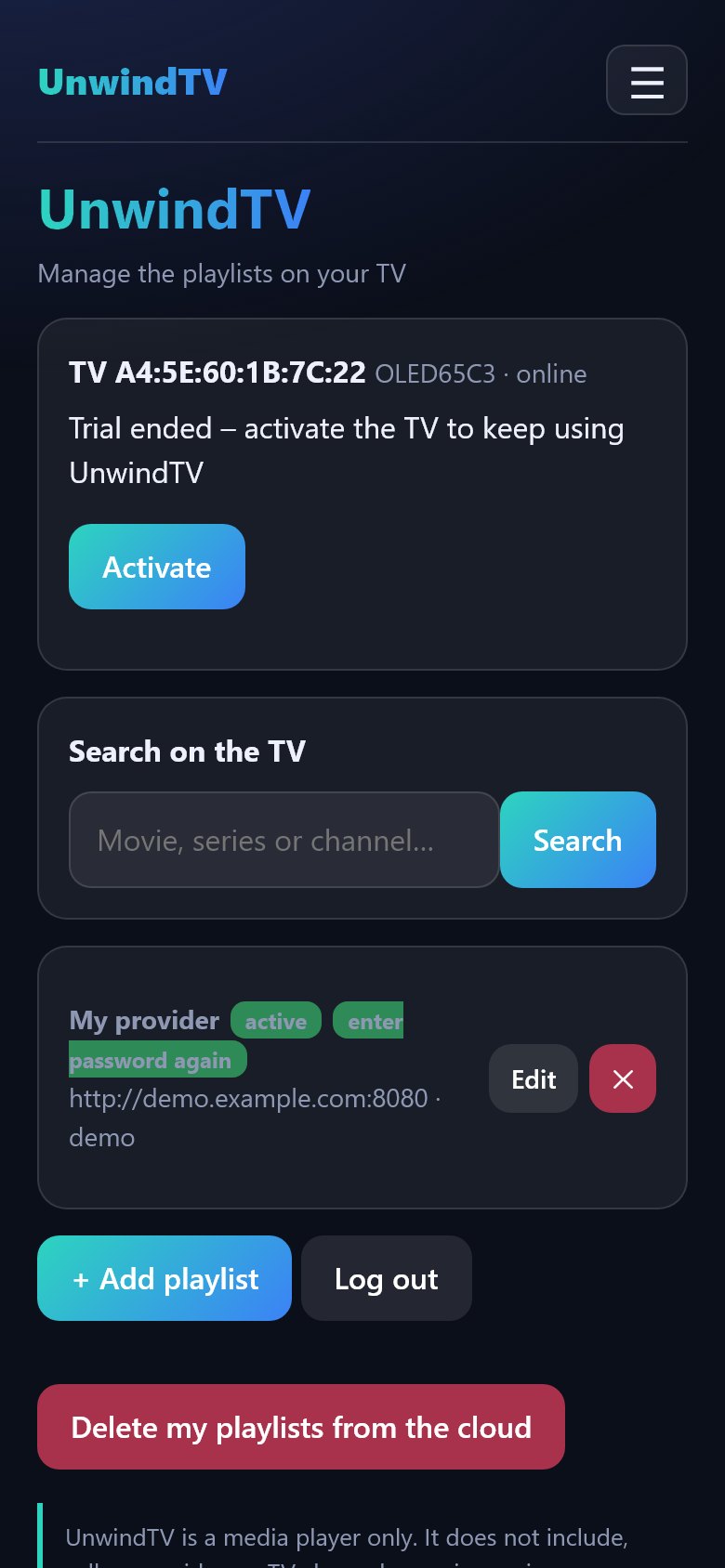
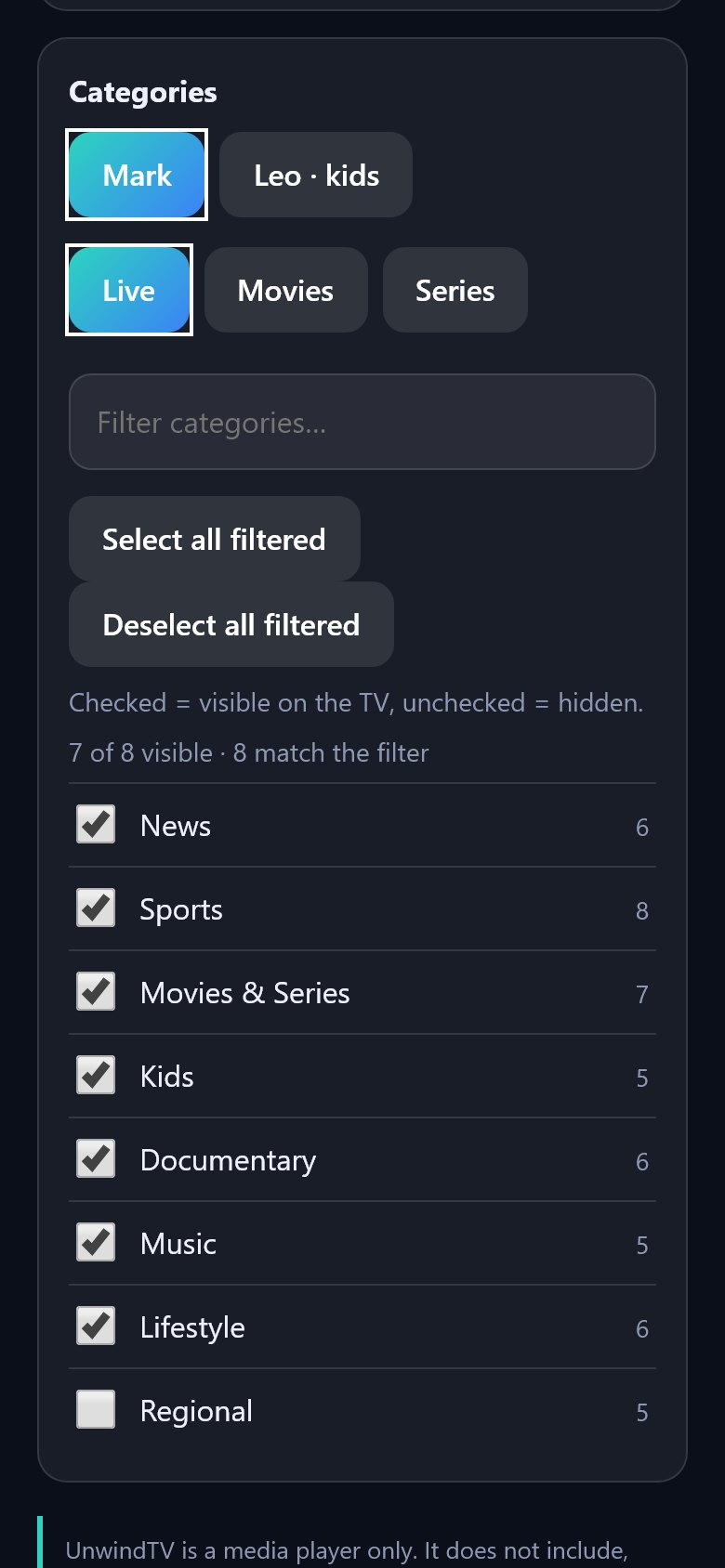
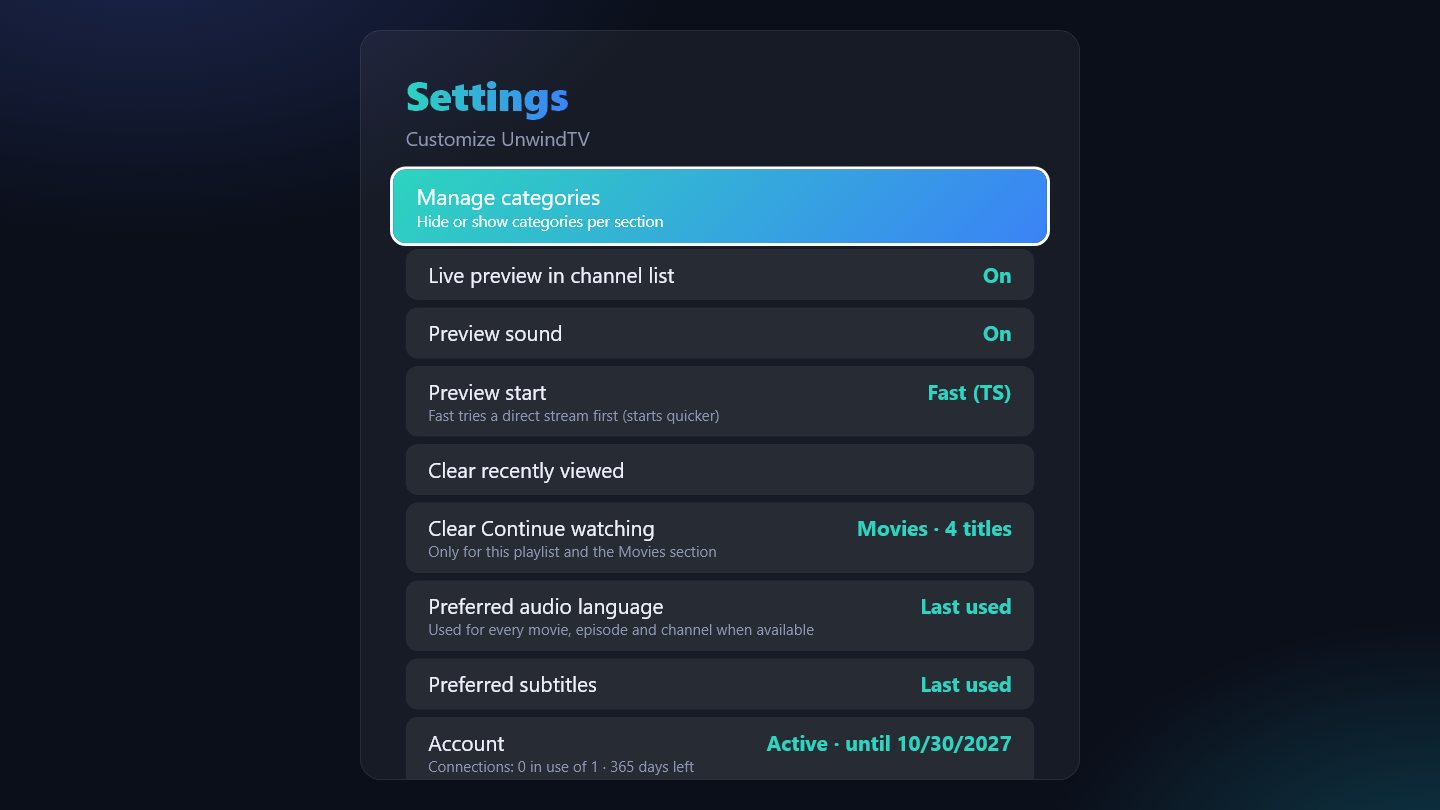
Settings in the top bar: manage (hide) categories, a parental PIN to lock categories (Red in Manage categories), live preview and its sound, preferred audio and subtitle language, subtitle size, clear recently viewed, and your provider account status. Playlists lets you add more playlists and switch between them – each keeps its own favourites, hidden categories and Continue watching.
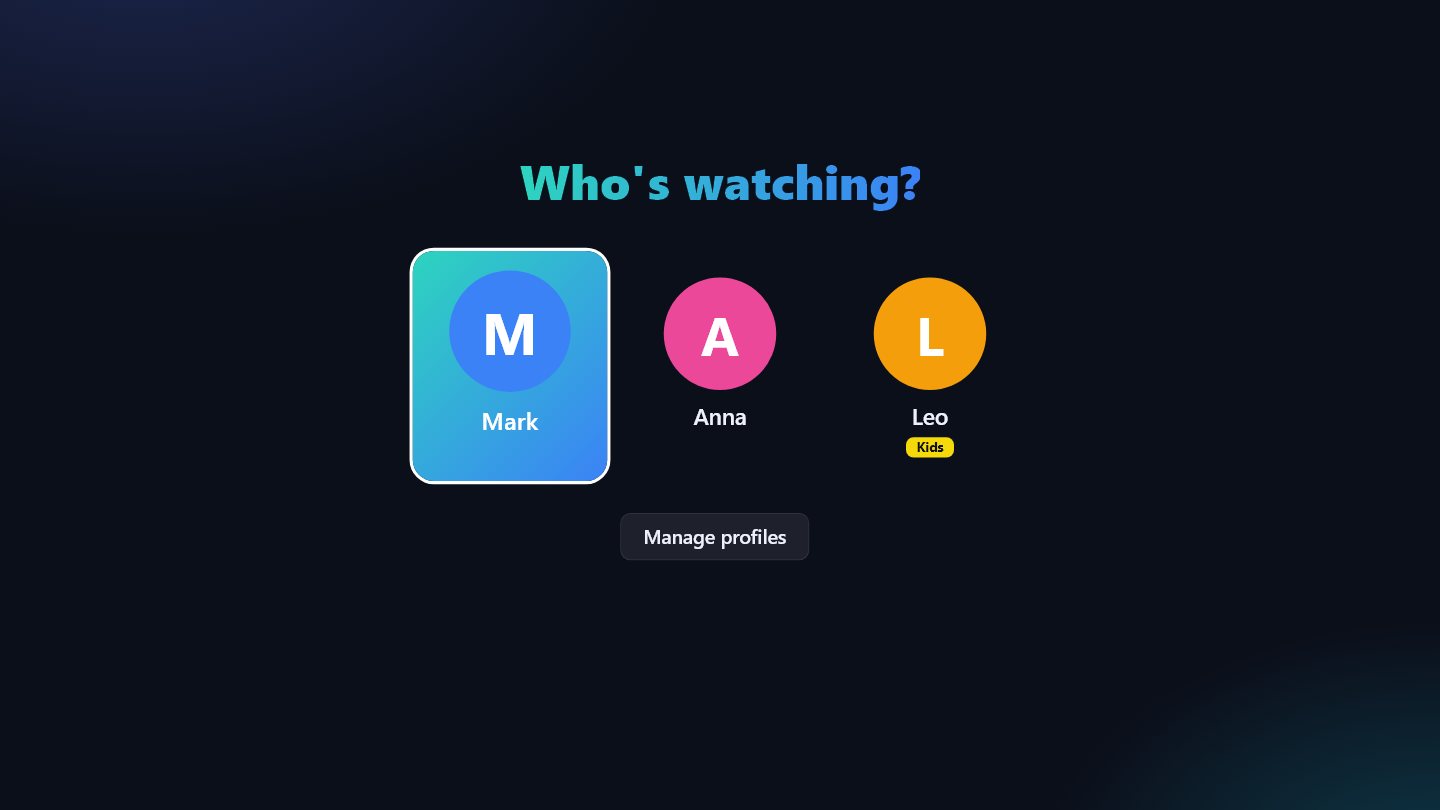
Everyone can have a profile (up to five): own favourites, Continue watching, watched marks, hidden categories, settings and app language. Add them in Settings → Profiles; when there are two or more, the app asks Who's watching? at the start, and the round button in the top bar switches.
A kid profile never shows categories named like adult content, not even in its category list, and it hides the categories you hide or lock in that profile – in menus, search, rows, the TV guide and channel numbers. Each kid profile has its own list, and changing it needs the parental PIN. Leaving a kid profile, Settings, Playlists and Remote setup also ask for the PIN. If a kid profile was used last, the app starts straight in it.
The kid filter works with the category names your provider uses. Check the kid profile once, and lock any category that should not be there (Red in Manage categories).
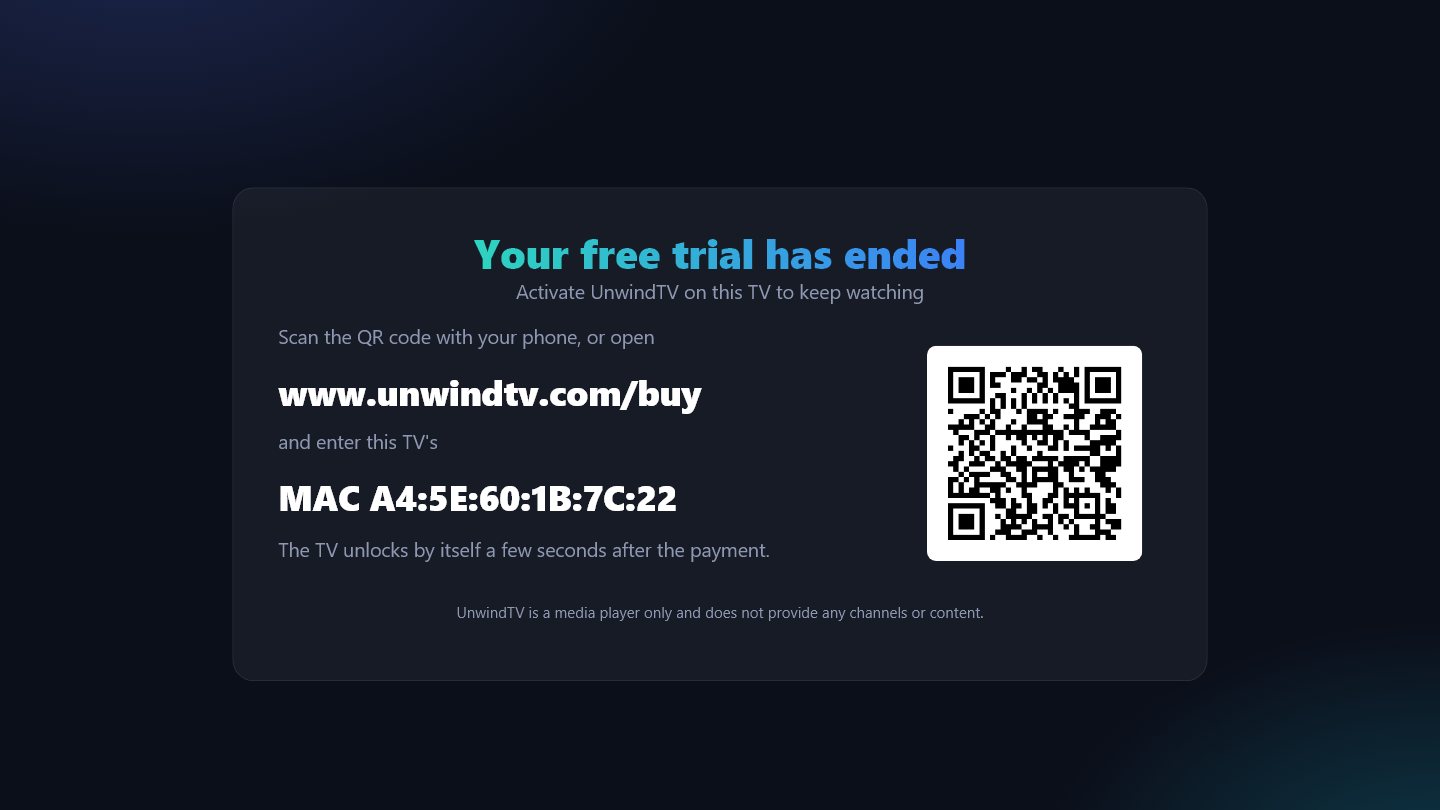
Every TV gets 7 days free. The days left are shown at the bottom of the screen. When the trial ends the TV shows a QR code and its MAC address – scan it to activate. The TV unlocks by itself a few seconds after the payment.
| OK | Play / open |
| Back | Close search → back to the menu → top bar → exit |
| Red | Search · in Favorites: move a channel · in the player: last channel · in Manage categories: lock |
| Green | Watched / not watched · Live TV: TV guide |
| Yellow | Add / remove favourite |
| Blue | Remove from Continue watching or Recently viewed · Live TV: preview on / off · in the player: audio & subtitles |
| 0–9 | Channel number (Live TV) |
| ▲▼ in the player | Next / previous channel |
| ◀▶ in the player | Seek (movies and episodes) |
From a provider you choose and pay yourself. UnwindTV does not sell, recommend or include any playlists.
The server address, username or password is wrong, or your provider account has ended. Check them with your provider.
UnwindTV allows it; your provider may limit how many devices can watch at the same time.
Playlist logins are stored encrypted and only your TV and your connected phone can see them. Privacy
The licence belongs to the TV. After a reset or reinstall it is recognised again automatically, and your profiles come back too. For your security the playlist password is asked once more.
It removes adult-named and locked categories completely, and it cannot be left without the parental PIN. It depends on how your provider names its categories, so check it once and lock anything that should not be there.